Brightchamps student dashboard – 3 checks before you commit
The Brightchamps student dashboard shows enrolled classes, progress badges, and next live session info; ages listed 4–18 on Brightchamps site. Table, checklist, and traps below.

Some links in this article lead to partner services. If you make a purchase there, the site may receive a commission; this does not affect the price or our assessment.
The Brightchamps student dashboard answers the basics fast – it centralizes upcoming live sessions, assigned exercises, and a simple progress view for enrolled classes. Brightchamps lists course ages as 4–18 and shows demo class booking information on its site, which matters if you need age-appropriate pacing (source: Brightchamps parents and courses pages). Below you get a compact comparison table, a 3-step checklist to validate the dashboard for your study goals, and key caveats that affect how useful the dashboard will be for you.
In short – key takeaways
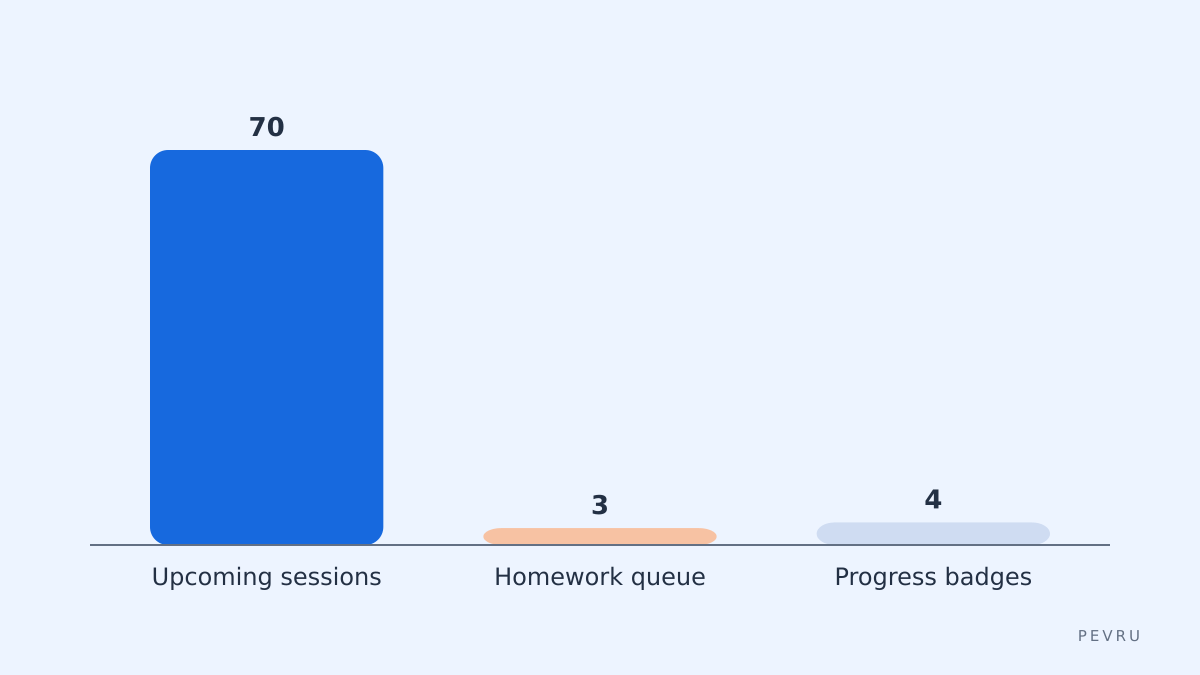
Dashboard scope – Brightchamps kids courses – trial class access: dashboard focuses on scheduled live classes, homework queue, and a basic progress badge system.
Who benefits most – independent learners who want scheduled, instructor-led sessions and clear next-task prompts; not ideal if you need fully self-paced modular content.
Cost note – Brightchamps offers demo/trial options on its site; official pricing and bundles vary by region (check the course or parents pages before you subscribe).
Limit and alternative – the dashboard can lock learning flow to the class schedule; consider mixed alternatives like self-paced course platforms for more flexibility (alternative: Outschool for marketplace-style scheduling).
How does the Brightchamps student dashboard show what to study next?
The dashboard prioritizes the immediate next session and pending assignments. You will see the next live lesson time, the instructor name, and one-line homework prompts; the interface groups tasks by enrolled class. If you have multiple classes, the dashboard lists them in order of next-start time. Check the Brightchamps class details on the courses page to confirm session frequency for any course you consider. Practical step – pick one course and confirm its weekly session count on the course page, then compare that cadence to how many hours you can study per week.
What to check before you buy a course or subscription
Confirm age and syllabus match – verify the course age range on the Brightchamps course page and sample syllabus items for skill progression.
Book a demo class – reserve a trial or demo class to see the dashboard flow and the live session join process. If joining the demo requires creating an account, note how the dashboard surfaces the trial lesson (it should appear in Upcoming).
Match session times to your availability – compare the scheduled session time on the course page with your calendar and check if the dashboard allows timezone adjustments. If the dashboard keeps sessions in platform time without a clear timezone toggle, treat that as a scheduling risk.
Quick comparison – dashboard options and who each suits
Option | Who it suits | Key number | Main drawback |
|---|---|---|---|
Brightchamps – live class dashboard | Learners who want instructor-led, scheduled sessions | Ages 4–18 (site listed) | Schedule-driven learning can block flexible study |
Outschool-style marketplace (alternative) | Families needing varied schedules and topic mix | Large instructor pool per subject | Quality varies by instructor and class |
Self-paced platforms (Coursera-like) | Self-directed learners needing modular progress | Module length varies by course | Less live interaction with instructors |
The Brightchamps row links to the program page for quick sign-up: Brightchamps kids courses – trial class access. Use the comparison to decide if you need live structure or flexible pacing.
Step-by-step checklist to validate the dashboard in 15 minutes
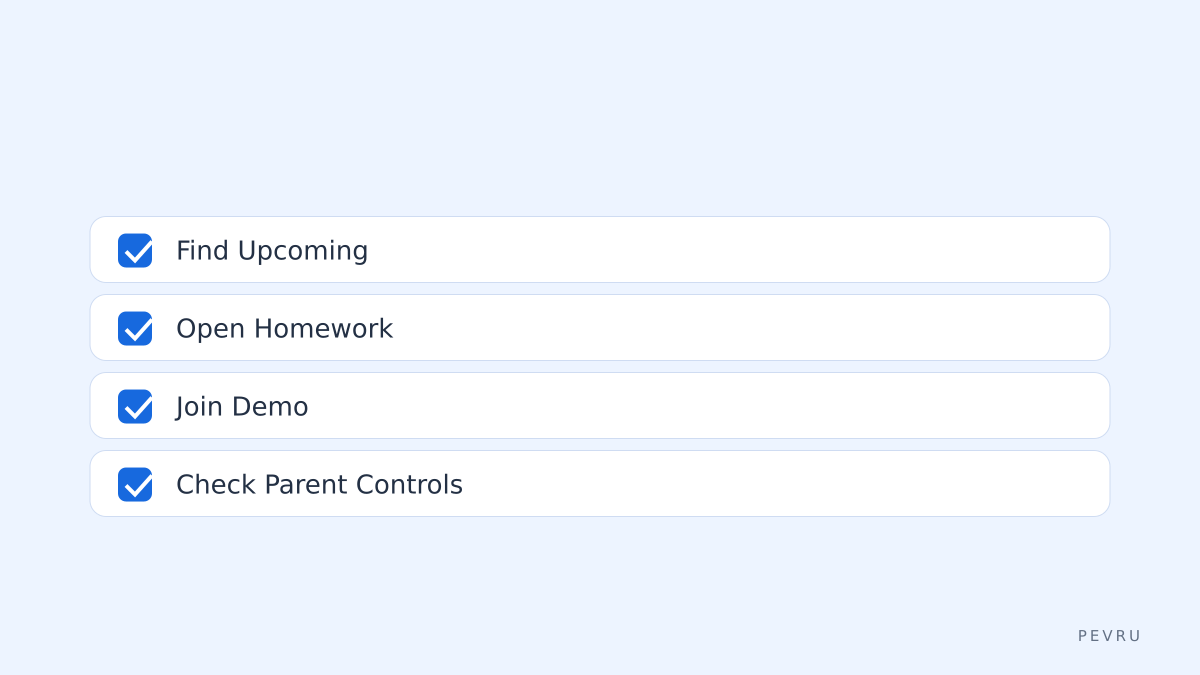
Log in and find Upcoming – confirm the next live lesson appears with instructor name and start time.
Open Homework queue – verify tasks include clear instructions and due dates; if due dates are missing, expect manual tracking.
Check progress indicators – look for skill badges or completion percent for the course you care about; note whether they link to remedial material.
Test joining a live session – join the scheduled demo or recorded session to confirm the join button works and whether the dashboard shows connection diagnostics.
Inspect parent or guardian controls – for under-13 learners, confirm access controls and progress emails are enabled on the parents page.
Honest caveats and the limitation to watch
Brightchamps provides a clear live-class dashboard, but that focus creates limits. If you prefer strictly self-paced modules, the dashboard will push scheduled lessons first and may make on-demand content secondary. The dashboard also depends on timely instructor updates; if teachers delay posting homework, the dashboard reflects that delay. One clear limitation: the system is built for live cohorts rather than independent micro-lesson consumption. An alternative if you want full on-demand pacing is a self-paced course platform that lets you complete modules on your schedule.
FAQ about the brightchamps student dashboard
Q: Can I see past session recordings in the dashboard? A: Yes, recordings are usually available under the class page or session history; availability depends on the course and instructor policy. Confirm the recording policy on the Brightchamps course or parents pages before you enroll.
Q: Does the dashboard sync with my calendar? A: The dashboard shows session times but calendar sync varies by course and regional settings; check for an export or add-to-calendar link during the demo booking step.
Q: How do progress badges relate to skill level? A: Badges indicate completion of set milestones, not standardized skill scores; use badges as a prompt for next lessons, not as a definitive proficiency test.
Q: Can I pause or change a scheduled class from the dashboard? A: You can request rescheduling or transfer, but policies differ by course and plan; check the enrollment terms on the course page.
Q: Is parent access separate from the student dashboard? A: Parent dashboards or email summaries are commonly offered; validate notification settings on the Brightchamps parents page.
Decision rule – pick a live-class dashboard if you need scheduled accountability; pick a self-paced platform if your study time is irregular. For trial access and demo booking, use Brightchamps kids courses – trial class access.
Sources:
https://brightchamps.com/
https://brightchamps.com/parents
https://brightchamps.com/courses