Dochub app – Sign PDFs, 3 checks before you pay
Quick answer and three concrete checks for using DocHub to sign and edit PDFs. Includes integration note, a comparison table with limits, and practical steps.

Some links in this article lead to partner services. If you make a purchase there, the site may receive a commission; this does not affect the price or our assessment.
DocHub is a sensible pick when your daily task is signing, filling, and annotating PDFs quickly; it connects with Google Drive and Dropbox for document access and supports in-browser signing without installing software (source: https://www.dochub.com/features). The main trade-off is that advanced workflow automation and enterprise controls cost extra on paid plans; check pricing details at DocHub's pricing page before you upgrade (source: https://www.dochub.com/pricing). Below you get a compact comparison table, three concrete setup steps, and the common caveats to watch.
In short – key takeaways
Quick start with DocHub free plan – link Google Drive, sign in browser, and handle one-off PDFs without a desktop app.
If you send recurring signature requests, compare the paid plan cost and limits on signature templates at DocHub pricing.
Use the Google Drive integration to avoid re-uploads; enable it in account settings and allow file access.
Limitation: DocHub lacks built-in enterprise audit logs comparable to Adobe Acrobat Sign; consider Adobe Sign as an alternative for strict compliance.
How does DocHub fit a daily signing task?
DocHub handles filling, signing, and annotation from a browser or iPad, which is what most daily tasks need. For a solo worker who signs fewer than a dozen documents a week, the free plan plus Google Drive integration usually suffices; enable "Connect Accounts" in Settings to see Drive and Dropbox files inline (source: https://www.dochub.com/features). If you regularly send signature requests with templates, check the paid tiers for the template and bulk-send limits on the pricing page before subscribing (source: https://www.dochub.com/pricing). Steps to start: create an account, connect Google Drive, upload one PDF, add a signature field, and use "Request Signature" when needed.
Comparison table – practical options at a glance
Option | Who it suits | Key number or limit (source) | Main drawback |
|---|---|---|---|
DocHub free | Solo signers who need quick edits | Connects Google Drive and Dropbox; in-browser signing (features page) | Limited workflow automation compared with enterprise tools |
DocHub Pro (paid) | Small teams needing templates | Paid tier adds advanced templates and bulk actions (pricing page) | Monthly fee for advanced features |
Adobe Acrobat Sign | Regulated businesses needing audit logs | Enterprise-grade audit trails and integrations | Higher cost and more complex setup |
DocHub row: DocHub Pro features and limits
Which settings to check first after signup?
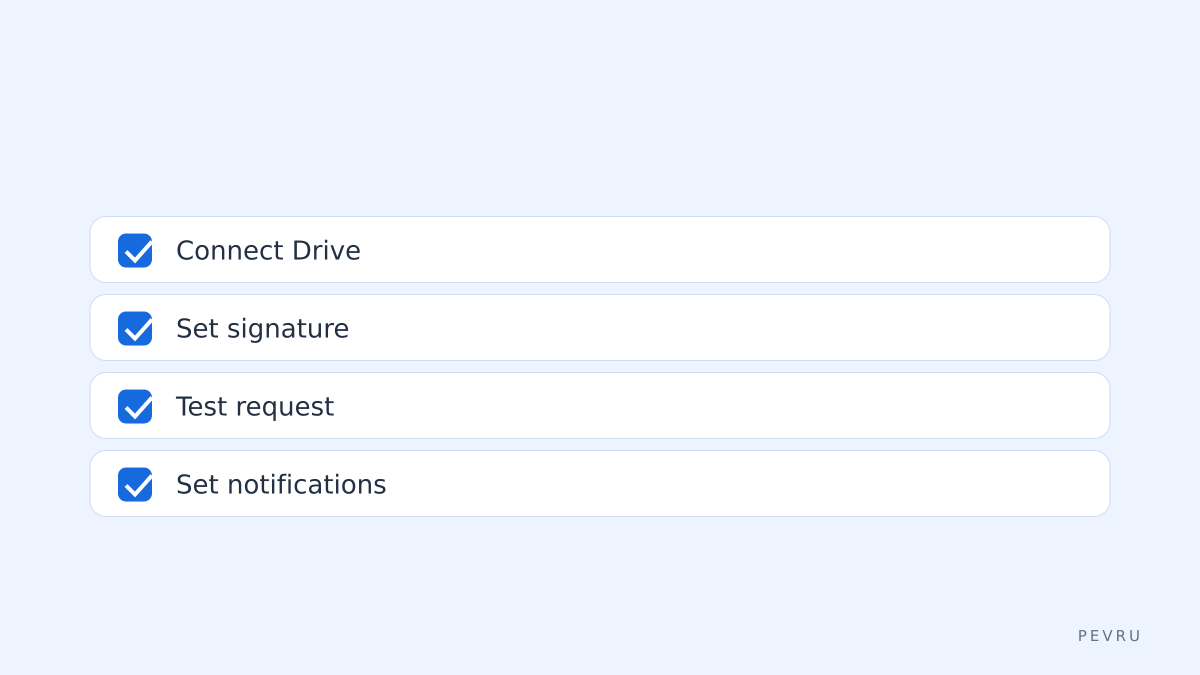
Turn on document connections, default signature, and notification rules. In Settings > Connected Accounts enable Google Drive or Dropbox to avoid manual uploads; this saves time when the same client files return. Set your default signature under Profile > Signatures so each new document inserts it automatically. In Notifications, choose email alerts for incoming signature requests only; turning on every activity email creates noise. If you plan to send templates, check the paid plan limits on template counts on DocHub's pricing page before creating many templates (source: https://www.dochub.com/pricing).
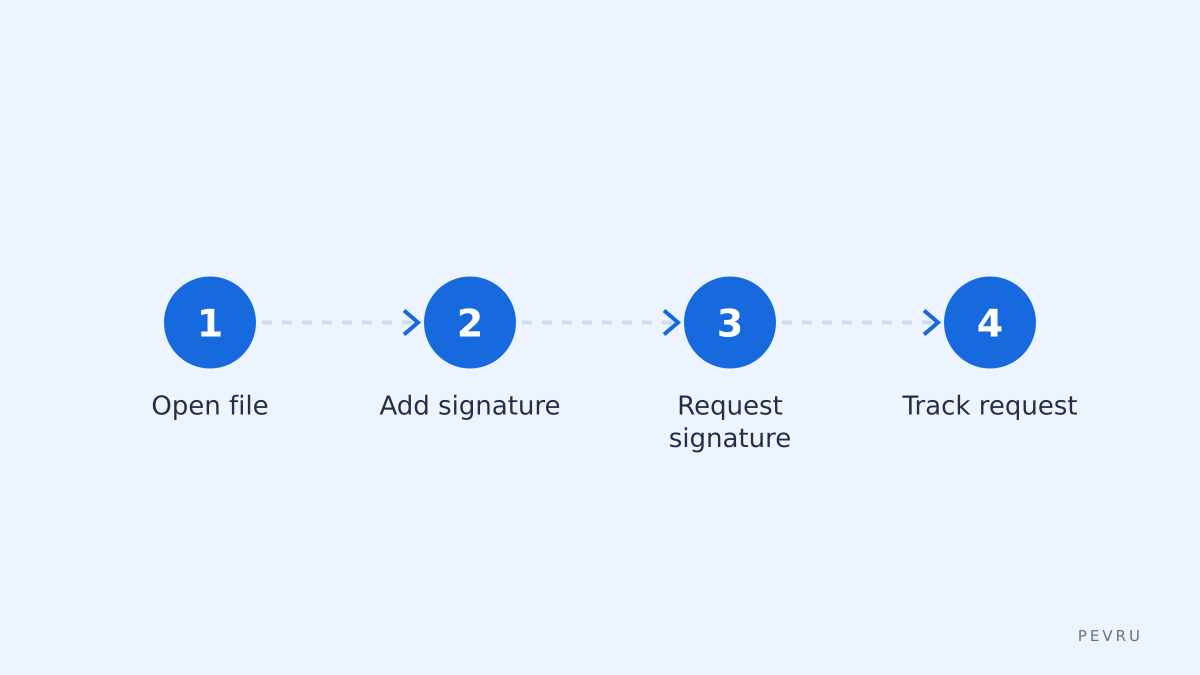
Step-by-step: Send a signature request in 6 actions
Open the PDF from Google Drive via the connected accounts panel.
Click "Edit" and drag a signature field where needed.
Insert your saved signature from Profile > Signatures.
Choose "Request Signature" and add signer emails.
Set role and signing order if more than one signer is needed.
Send and track via the "Requests" tab; follow up with a reminder if unsigned after 3 days.
Common traps and honest caveats
DocHub is fast for ad hoc signing but has limitations for formal compliance. It does not advertise the same level of enterprise audit trails and retention controls found in dedicated e-signature platforms; regulated industries may require Adobe Sign or an ESIGN-specific vendor. DocHub also stores documents in your account cloud; if you need guaranteed on-prem storage, choose a different provider. For heavy automation (bulk sending thousands of documents), verify DocHub's rate limits and template quotas on the pricing page before moving critical workflows there (source: https://www.dochub.com/pricing).
Alternatives and when to pick them
Choose DocHub when you prioritize speed, in-browser edits, and Drive/Dropbox convenience. Pick Adobe Acrobat Sign when you need enterprise compliance and detailed audit logs. For simple team workflows without extra cost, consider small-team PDF tools like PDFescape as a backup. One honest limitation of DocHub is less advanced enterprise governance; an alternative without that limit is Adobe Sign.
FAQ about "dochub app"
Q: Is the DocHub app only web-based? A: No, DocHub works in-browser and offers mobile/tablet-friendly pages; you can use it on an iPad or phone without a separate desktop install (features page). For offline native editing, choose a dedicated PDF editor.
Q: Can I use Google Drive files directly? A: Yes, connect Google Drive in Settings to open and save files directly from Drive (features page). This avoids re-uploading and keeps Drive versions current.
Q: Does DocHub provide legally binding signatures? A: DocHub supports electronic signatures suitable for many business uses, but legal acceptance depends on jurisdiction and document type; for high-risk legal documents, consult counsel or use a service with certified audit trails.
Q: What happens to my documents if I stop paying? A: Access and advanced features tied to paid plans stop; documents remain in your account but features like bulk templates may be disabled. Check the pricing and account terms for retention details (pricing page).
Q: Is there a free trial for Pro features? A: DocHub lists plan options on its pricing page; check that page for trial availability and exact feature lists before upgrading (source: https://www.dochub.com/pricing).
Decision rule – one short sentence If you sign fewer than 15 documents per week and need fast Drive integration, start with DocHub free plan; if you need bulk templates or audit logs, compare DocHub Pro to Adobe Acrobat Sign before you commit.