Movavi video editor – 3 checks before you buy (4K export)
Quick verdict: Movavi handles daily edits and 4K export with a simple timeline. Read the table, three buying checks, and the traps to avoid before you pay.
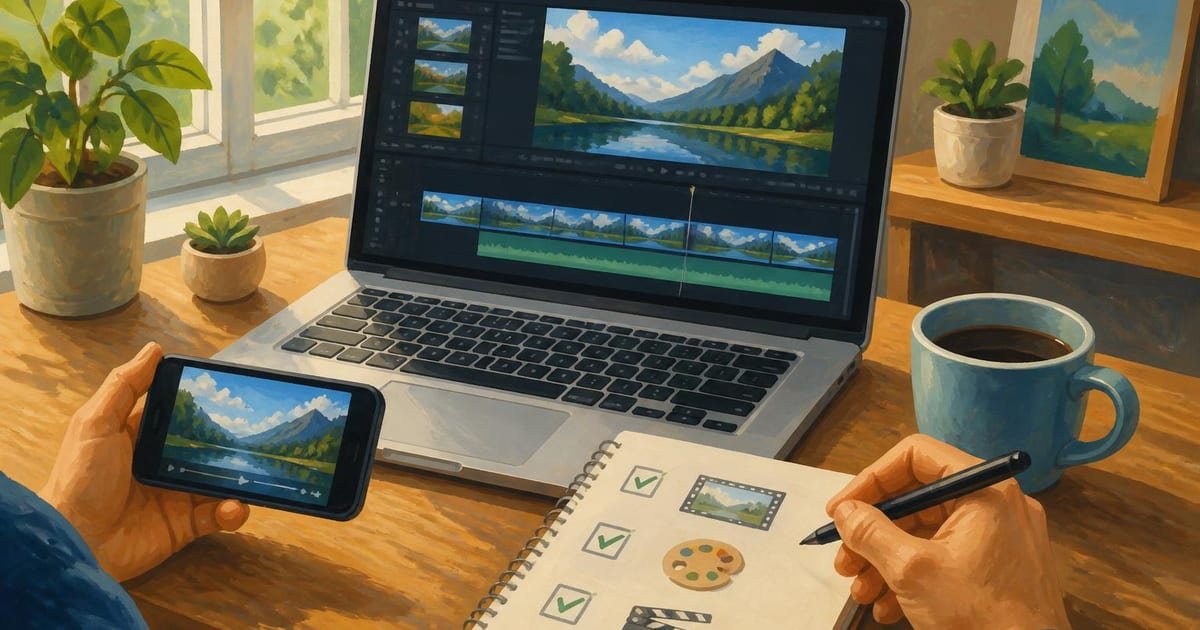
Some links in this article lead to partner services. If you make a purchase there, the site may receive a commission; this does not affect the price or our assessment.
Yes – Movavi Video Editor is a solid, practical choice for daily short-form edits when you want a simple timeline and 4K export without a steep learning curve. It supports 4K export and basic GPU acceleration for faster renders, and offers a free trial so you can test your workflow before buying; below you get a compact comparison table, three buying checks, step-by-step editing steps, and the main caveats to watch.
In short – key takeaways
Quick win – Movavi Video Editor (Standard) is best for short social clips and family videos because it offers a drag-and-drop timeline and 4K export.
Try first – open Movavi Video Editor Standard trial to confirm your GPU and format workflow before buying.
Watch codecs – Movavi handles MP4/H.264 and HEVC if your system codecs are installed; complex codecs may need extra installs.
Consider alternatives – free Shotcut gives more format control but a steeper interface; Movavi is simpler.
How does Movavi handle everyday editing tasks?
For trimming, joining, basic color correction and titles you perform these steps: import clips via File > Add Files, drag clips to the timeline, use the scissors tool to cut at playhead, apply a Title preset and export using the preselected MP4 – H.264 profile. The program provides timeline snapping and preset aspect ratios for 16:9 and 9:16, which speeds up social uploads. Use the Export window to pick resolution – select 4K (3840×2160) when you need maximum quality, but choose 1080p for faster render times on older machines.
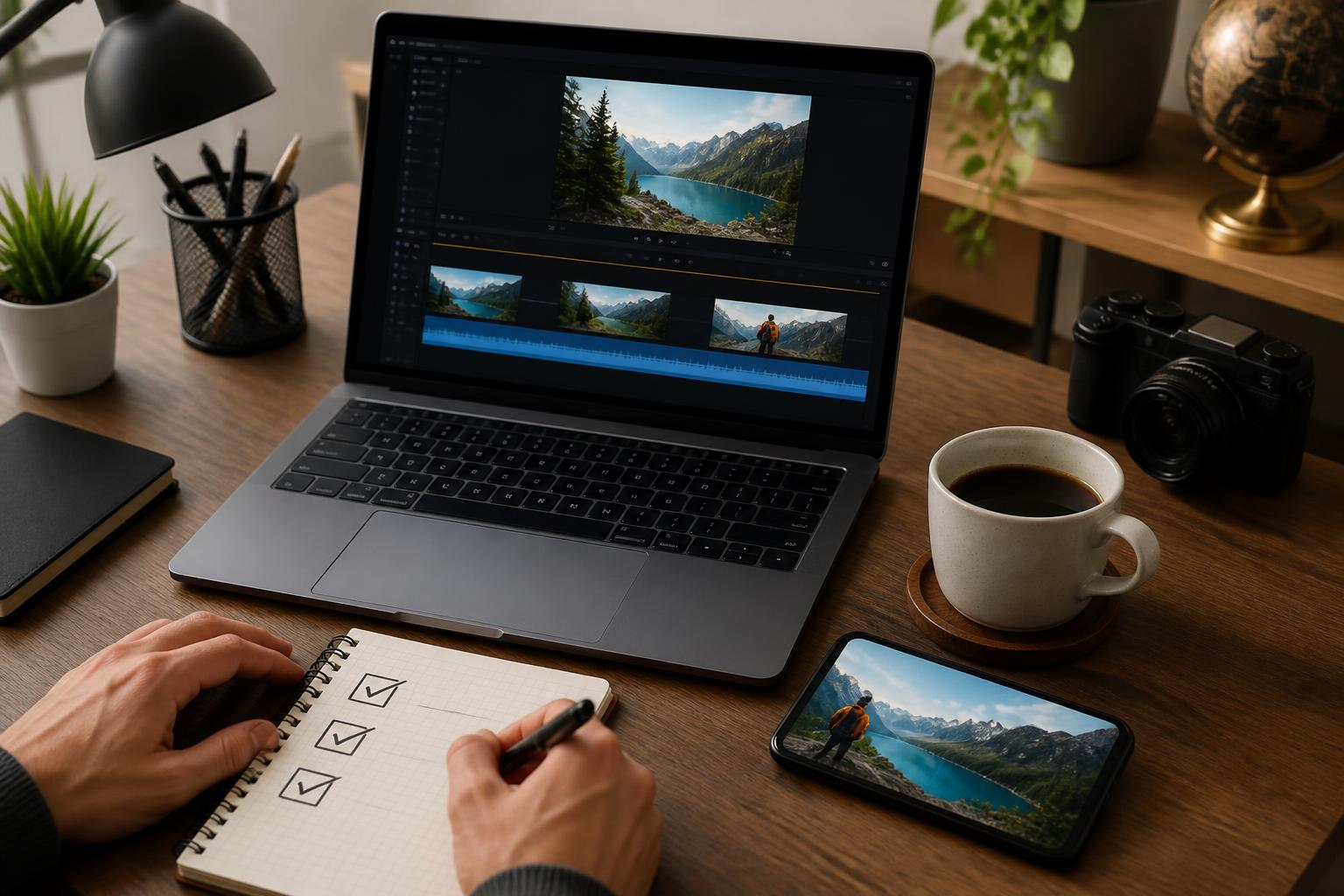
Comparison table – quick options for daily edits
Option | Who it suits | Key number | Main drawback |
|---|---|---|---|
Movavi Video Editor (Standard) | Solo creators who want fast edits and presets | 4K export and basic GPU acceleration | Limited advanced color grading tools |
Movavi Video Editor Plus | Creators who want extra effects and animated titles | More built-in effects and animations | Adds cost and slightly steeper menu density |
Shotcut (free) | Users who need advanced format control without cost | No purchase price and many codec options | Cruder UI and steeper learning curve |
Each Movavi option includes templates and export presets; check Movavi Video Editor Plus feature page for specifics and to confirm the effect set. The table lists the main tradeoff you should expect when choosing simplicity over advanced grading.
Which plan should you pick for daily social posts?
If you edit 1–2 videos per day, pick the Standard edition for a low-friction workflow; it gives the core tools without paying for extra effect packs. If you publish branded weekly content with animated intros, the Plus edition adds title animations that save time. Before purchasing, run the free trial to confirm that your common export format (MP4 H.264 or HEVC) is available and that your GPU accelerates renders on your machine. If your work needs RAW color grading or multi-cam sync, choose a different app because Movavi focuses on speed over pro-level color tools.
How to set up a fast daily workflow in 6 practical steps
Install the trial from the product page and open one representative project file.
Set project resolution to your most common output – 1080p for socials, 4K for archival masters.
Create a personal template: import logo, create title preset, save as a project template.
Use scene markers to cut faster: place marker at sound beats and trim clips to markers.
Export with the MP4 – H.264 preset for compatibility; switch to HEVC only if file size matters and your platform supports it.
Keep a small LUT or color preset for brand consistency and apply it to every clip before final export.
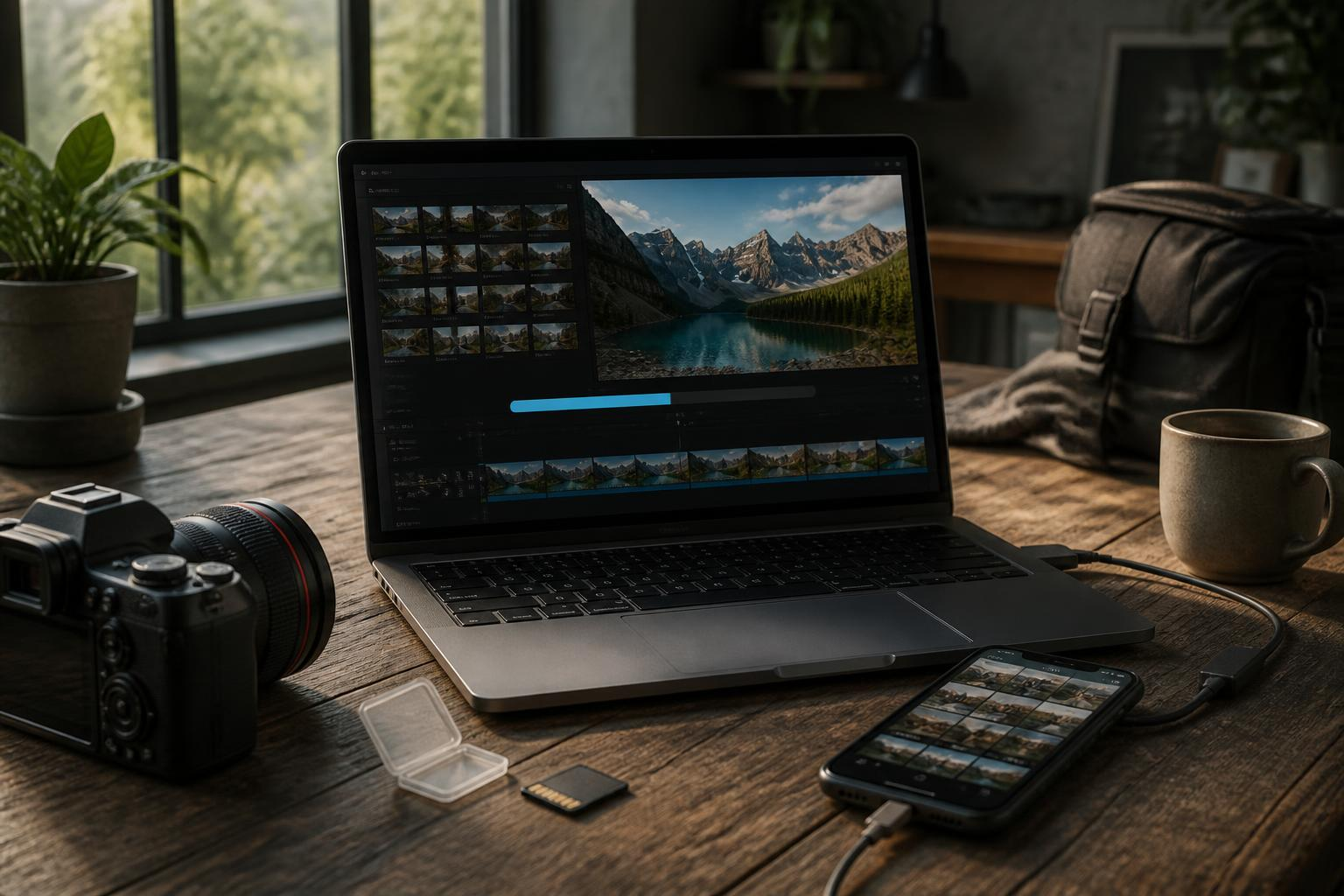
Main caveats and things users miss
Movavi prioritizes speed and ease, which means you may miss professional features: no dedicated waveform or scopes for color-critical grading, and limited multicam editing. Codec support can depend on system codecs; HEVC export requires compatible hardware or codec pack. Performance claims depend on your CPU/GPU and RAM, so test with a 4K clip in the trial to measure render time. Also expect some effect presets to be less configurable than in pro apps; if you need frame-by-frame animation control, consider an alternative.
FAQ about movavi video editor
Q: Can I export in 4K with Movavi? A: Yes, Movavi supports 4K export; select 3840×2160 in the Export settings and choose the MP4 – H.264 preset or HEVC where supported. Test a representative clip in the trial to verify render speed on your hardware.
Q: Does Movavi do GPU-accelerated rendering? A: Yes, Movavi uses basic GPU acceleration to speed exports on supported hardware, but actual gains vary by GPU model and driver. If you need guaranteed GPU benefits, test your typical export in the trial.
Q: Is there a subscription or one-time purchase? A: Movavi sells different licensing options; check the product pages for current purchase models and the differences between Standard and Plus before deciding.
Q: What formats should I expect to work without extra installs? A: Common formats MP4 with H.264 typically work out of the box; less common codecs may need system codec support. If you rely on unusual formats, confirm in the trial.
Q: Is there a free alternative if I outgrow Movavi? A: Shotcut is a free open-source alternative that provides more format control and advanced options but has a steeper learning curve.
Decision rule – one quick test before you pay Export a 1–2 minute 4K clip from your trial on the machine you use daily; if the export completes within your acceptable time budget and the codec matches your destination platform, buy the Standard plan; if you need advanced grading or multicam, choose an alternative such as Shotcut.
Sources
https://www.movavi.com/video-editor-plus/
https://www.movavi.com/support/how-to/export-video.html
https://www.shotcut.org/